Setting up Betaflight rates: center, max and expo explained
Rates define how fast your quad turns when you move the stick: little in the center, a lot at full stick. This guide shows where to set them in the Betaflight App and explains the three values, the rates types, a clean procedure and the typical mistakes. Apart from Betaflight’s defaults you will not find specific numbers here; yours depend on how you fly, and they can be measured.
What rates are
Betaflight turns the stick position into a turn rate in degrees per second. The Betaflight documentation puts it this way: “A rate model is the mathematics used to transform the stick position to a turn rate in deg/s. Three parameters, RCRate, Rate, and Expo, determine the curve of the rate model.” And: “Typically the maths makes the sticks less sensitive in the center and more sensitive further out.” There are several rates models; since Betaflight 4.3 Actual Rates is the default. There, the three values are called Center Sensitivity, Max Rate and Expo in the Betaflight App.
Where to set rates in the Betaflight App
In the Betaflight App (app.betaflight.com or the desktop and mobile builds, version 2026.6.2) the rates sit in a sub-tab that is easy to miss:
- “PID Tuning” tab in the left sidebar, with the quad connected over USB. The tab always opens on the “PID Profile Settings” sub-tab; the “Profile” selector at the top left there is the PID profile, not the rate profile.
- “Rate Profile Settings” sub-tab.
- Top left, “Rateprofile”: pick the profile, “Rateprofile 1” to “Rateprofile 4”. Next to it is its “Rate profile name”, at the top right “Copy rateprofile”.
- “Rates Type” on the left, “Actual” from the factory since Betaflight 4.3. Below it the “Basic/Acro Rates” table with the rows Roll, Pitch and Yaw and the columns “Center Sensitivity”, “Max Rate” and “Expo”. The app works out the fourth column itself, and the “Rates Preview” below draws the curve.
- Click “Save” at the bottom.
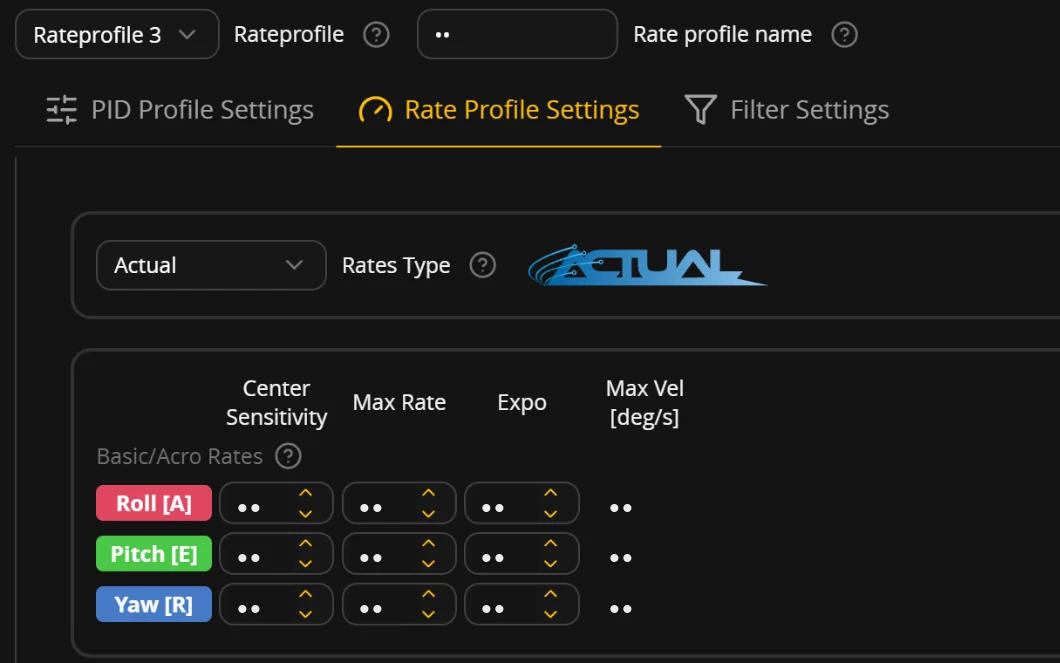
A different rate profile takes effect as soon as you pick it at the top left, but it only sticks after “Save”. While changed values are unsaved, the profile selector is locked: “Save” or “Refresh” first. In the CLI tab, rateprofile 0 to rateprofile 3 switches the rate profile (the CLI counts from 0), then save.
What the three values do
| Value | Effect | What you feel on the stick |
|---|---|---|
| Center (center sensitivity) | Slope of the curve around center stick, directly in °/s. | How sensitive small corrections are. High = twitchy in the center, low = calm, but you need more travel for turns. |
| Max (max rate) | Turn rate at full stick in °/s. | How fast rolls and flips spin. Too low = flips and rolls feel sluggish; too high = the last bit of stick is hard to control. |
| Expo | Shifts the bend of the curve outward without changing center or max. | How long the center stays “soft” before the rate rises steeply. More expo = longer calm center and a steeper edge. |
The Betaflight documentation on the newer rates modes says: “In both the new models, expo shifts the curve further out, but doesn't change either the center sensitivity (slope of the RC rate curve at center), or the max rate. Higher expo extends the center rate further out, so the quad won't spin fast until your sticks are a long way out.” That is why it pays to think of the three values separately: center, full deflection and the transition between them.
Betaflight’s default rates
A freshly flashed flight controller starts with these rates. They are written like this in the firmware source code (controlrate_profile.c, Betaflight 2026.6.2, the current release on 10 November 2026), the same on every rate profile:
| Axis | Center | Max | Expo |
|---|---|---|---|
| Roll | 70 °/s | 670 °/s | 0.00 |
| Pitch | 70 °/s | 670 °/s | 0.00 |
| Yaw | 70 °/s | 670 °/s | 0.00 |
In the CLI, Betaflight stores center and max divided by 10 and expo times 100: roll_rc_rate = 7 is center 70 °/s, roll_srate = 67 is max 670 °/s, roll_expo = 0 is expo 0.00, the same for pitch and yaw, with rates_type = ACTUAL. It is a neutral starting point of the firmware, not a setting for how you fly.
Why the center is so soft and the max so high is explained in the Betaflight 4.3 docs, the release that brought these values: “the new defaults are softer in the center (center sensitivity of 70, compared to about 200 in Betaflight's old defaults), and more responsive further out.”
So which rates should I start with?
With the default Betaflight ships with itself: Rates Type Actual, on all three axes center 70 °/s, max 670 °/s and expo 0.00. A freshly flashed flight controller already has it. Other pilots’ numbers fit their hands, radio and quad, not necessarily yours (more under Typical mistakes).
Which values fit you is shown by your own log. Fly three to five packs with your current rates and drop the log into the free check: it measures how you use your stick and whether your curve fits it, no account, the file stays with you. What such a result looks like is shown in the example result.
Feel your ratesYour Actual rates next to the Betaflight default, with a slider or your radio.
Enter your values from the Betaflight App (Rates Type “Actual”: Center Sensitivity, Max Rate, Expo). Then move the slider or connect your radio by USB (EdgeTX/OpenTX: USB joystick). Both quads roll with the same stick position, left with your rates, right with the Betaflight default. It shows the curve, not flight physics.
Betaflight doesn’t store this value for Actual rates: center 10 to 2000 °/s, max 0 to 2000 °/s, both in steps of 10, expo 0.00 to 1.00. The preview uses the last valid value.
The calculation runs in your browser, nothing is sent or stored.
The five rates types
Under “Rates Type” the app offers five types: Betaflight, Raceflight, KISS, Actual and Quick. The documentation: “Betaflight supports Actual, Quick, Betaflight, Raceflight and Kiss models.” The type is set per rate profile (rates_type in the CLI), and depending on the type the three numbers mean something different. That is why the app renames the columns:
| Type | Columns in the app | What the numbers set |
|---|---|---|
| Actual | Center Sensitivity · Max Rate · Expo | Center and full stick directly in °/s, expo only moves the bend. Default since 4.3. |
| Quick | RC Rate · Max Rate · Expo | Center via RC Rate, full stick directly in °/s, expo shapes the transition. |
| Betaflight | RC Rate · Rate · RC Expo | Center and full stick result from all three numbers together. Default up to 4.2. |
| KISS | RC Rate · Rate · RC Curve | like Betaflight |
| Raceflight | Rate · Acro+ · Expo | like Betaflight |
About the three older types the documentation says: “The maximum rate and center sensitivity of Betaflight, Kiss and Raceflight rates models are altered by changing any of the three values in the model.”
Careful when you switch: the app does not convert your values, it puts in the default curve of the new type. The warning says: “If you change the rates type your rates will be set to a default curve.” Write your values down first. How to take them along as Actual is in the guide Converting Betaflight rates to Actual.
The formulas from the source code
This is how Betaflight 2026.6.2 turns the stick position into a turn rate (rc.c, functions applyBetaflightRates to applyQuickRates). x is the stick from −1 to 1, rate the turn rate in °/s, rc_rate, srate and expo are the values as they appear in the CLI.
Actual      c = rc_rate·10;  M = srate·10;  e = expo/100
            rate = x·c + max(0, M − c)·|x|·(x⁵·e + x·(1 − e))

Betaflight  x' = x·|x|³·e + x·(1 − e)                 e = expo/100
            r = rc_rate/100;  if r > 2: r = r + 14.54·(r − 2)
            rate = 200·r·x' / (1 − |x|·srate/100)

KISS        rate = 2·rc_rate·(x³·c + x·(1 − c)) / (1 − |x|·srate/100)
            c = expo/100

Raceflight  x' = x·(1 + expo/100·(x² − 1))
            rate = 10·rc_rate·x'·(1 + |x|·srate/100)

Quick       m = 2·rc_rate;  M = max(srate·10, m);  k = (M/m − 1)/(M/m)
            g = |x|³·e + |x|·(1 − e)                 e = expo/100
            rate = x·m / (1 − g·k)
Betaflight keeps the denominators between 0.01 and 1, KISS and Quick cap at 1998 °/s. Finally, for every type, rate_limit caps the turn rate, 1998 °/s from the factory.
How well do your rates fit your stick? The free check measures it on your blackbox log. No account, the file stays with you.
No log yet? See a real example · Turn on logging, with pictures
For your next flying day
- Betaflight App, Blackbox tab: logging device onboard flash or SD card, logging rate 1 kHz
- RC Commands, Setpoint and Gyro on, then “Save and reboot”
- Fly 3 to 5 packs of normal acro
- Then get the log off the quad and drop it into the free check
Actual vs Betaflight rates
Up to Betaflight 4.2 the Betaflight type was the default, since 4.3 it is Actual. The documentation: “Starting from 4.3, Actual Rates will be the new Betaflight default.” The difference is in how the three numbers hang together:
| Betaflight | Actual | |
|---|---|---|
| Fields | RC Rate · Rate · RC Expo | Center Sensitivity · Max Rate · Expo |
| Center | results from RC Rate and RC Expo | directly in °/s |
| Full stick | results from RC Rate and Rate | directly in °/s |
| Expo | also changes the center | only moves the bend, center and max stay |
If you fly Betaflight rates, the app shows center and max in °/s in the fourth column (“center - max”), so you can compare them directly with Actual. The converter rebuilds the curve as Actual: it keeps center and full stick and looks for the matching expo.
The 4.3 docs describe a trap when copying from the CLI: “If a user pastes in their Betaflight rates numbers from say a 'diff all', the rates_type information will not be included. The result will be that Actual Rates will be active, but with Betaflight CLI numbers. The quad will be un-flyable!” So whenever you copy rates, take the rates_type line along.
How to tell what is off
- Too twitchy, too sensitive: you correct all the time, small stick inputs do too much. That is the center: center too high or expo too low for your fine corrections.
- Too sluggish in turns and gaps: you have to move the stick a long way before anything happens. The calm center reaches too far out: expo too high or center too low.
- Rolls and flips too slow: turn rate is missing at full stick. That is max, not center.
- Unused stick travel: you fly normally with at most a third of the stick and the rest only exists for tricks. The curve rises too late; the free check on fpvrates shows this share as “unused”.
Step by step
- Measure first, then change. Fly three to five packs as usual with your current rates and with blackbox logging on (guide). Then you see where your stick really lives instead of guessing.
- One value at a time. Change only what matches the symptom. If you turn center, max and expo at once, you will not know afterwards what did it. The same goes for feedforward and RC smoothing: do not change them together with the rates.
- A new rate profile. Betaflight has several rate profiles: four since version 4.4, including 2026.6.2; in 4.3 it was six or three, depending on the board. Put the new values on their own profile so the old ones stay. The CLI counts profiles from 0, the app from 1; a CLI block with
rateprofile 2writes rate profile 3. - Make sure the profile is active. The documentation: “The action of selecting a Rate Profile also activates that rate profile for current use.” In the app the choice takes effect at once, but only sticks after “Save”. If profile selection sits on a switch of your radio, the switch position decides at power-up (see Switching rates with a switch). Check in the app under PID Tuning → Rate Profile Settings, top left at “Rateprofile”, which profile is active.
- Give them a few packs, then measure again. The Betaflight documentation keeps it short: “It takes time to get accustomed to a change in rates. Don't rush.” Fly the new rates for five to ten packs until they feel normal, then check with a new log whether your stick use has changed.
Switching rates with a switch
With a 3-position switch on your radio you change between three rate profiles, for example old and new rates. There is no mode for this in the Modes tab; it goes through the Adjustments tab, which the app only shows in expert mode.
- Turn on expert mode: click the wrench at the bottom of the left sidebar (tooltip “Toggle expert mode”).
- Open the “Adjustments” tab and switch on “If enabled” in a free row.
- “when channel”: the AUX channel of your switch. “is in range”: set the whole range from 900 to 2100; when you enable the row the app only sets 1300 to 1700.
- “then apply”: “Rate Profile Selection”. “via channel”: the same AUX channel.
- Click “Save”.
The documentation says the same: “For the Range, Select the whole Range from 900 to 2100. Select Rate Profile Selection from the drop-down menu. Via Channel is the same as the AUX channel used.”
After that the switch selects, in Betaflight 2026.6.2: low rate profile 1, middle rate profile 2, high rate profile 3. A 3-position switch cannot reach rate profile 4. If the quad has a beeper, it confirms a change with one, two or three beeps. At power-up the switch position counts: “When BetaFlight boots the active profile is selected by the position of the AUX channel.” Which rate profile is active is shown by the OSD element “Profile: PID and rate”, for example “1-3” for PID profile 1 and rate profile 3.
In the CLI the same works with adjrange. The example from the Betaflight documentation for a switch on AUX4 (the CLI counts AUX channels from 0, so AUX4 is 3): adjrange 11 0 3 900 2100 12 3 0 0, then save. Without a switch you change the rate profile in the app (top left under Rate Profile Settings), with rateprofile in the CLI or in the OSD menu under PROFILE → RATE PROF. More on the four profiles, diff all, the OSD display and common problems: rate profiles in Betaflight.
Typical mistakes
- Copying someone else's numbers. The Betaflight documentation names rough ranges per style (“racers prefer a more linear curve with a maximum turn rate of around 550-650 deg/s”, freestyle “high maximum turn rates (850-1200 deg/s)”). Those are observations about groups, not a setting for you: gimbals, radio, quad and habits differ.
- Changing everything at once. Rates, PIDs, filters and feedforward in one step: every improvement or regression becomes unexplainable.
- Judging too early. New rates almost always feel wrong for the first packs, because your muscle memory still expects the old curve.
- Forgetting the profile. Values saved, but the switch still sits on the old profile: you keep flying the old rates.
What fpvrates adds
fpvrates is not a rates calculator. It reads your blackbox log in the browser and measures five stick zones per axis: fine, precision, normal flying, unused travel and full stick. The free check shows these zones and the steepness of your current curve; the Tuning Pass turns them into suggested values for center, max and expo that you write to a separate rate profile as a CLI block, and measures again after every round until nothing relevant moves any more.
Last updated: Nov 11, 2026